Resource Centre - Health Records Module
 Return to Resource Centre
The Health Records module contains scanned documents from historical (archived) patient visits.
The Health Records data is integrated from Hamilton Health Sciences (HHS), Niagara Health System (NHS) and the Woodstock Hospital as shown in the example below.
To access the Health Records module, click the Health Records option from the Clinical Modules menu.
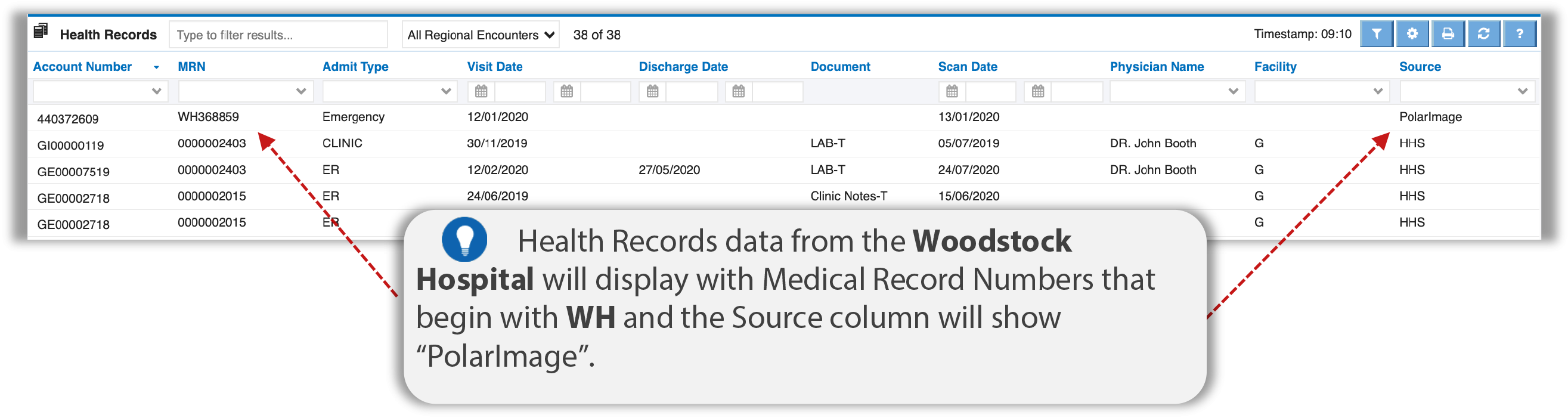
 An error message may present when accessing Health Records from select facilities indicating that data could not be accessed from the source site due to limited licenses. In this case, users should wait a few seconds and try again.
The document list of health records can be sorted using the Smart Filter, Encounter or by clicking any of the column headers in this view to sort the entire list by the contents under that column, in either ascending or descending order.
Viewing Health Records Documents
To view a health record:
1. Click the row of the document you want to view.
2. Health record documents are displayed in PDF in your browser window.

3. Close the PDF to return to the health records list.
Health Records Preferences
The Health Records module has it’s own set of preferences that can be accessed and configured by clicking the Preferences button  in the module header or by using the Preference Setup Wizard.
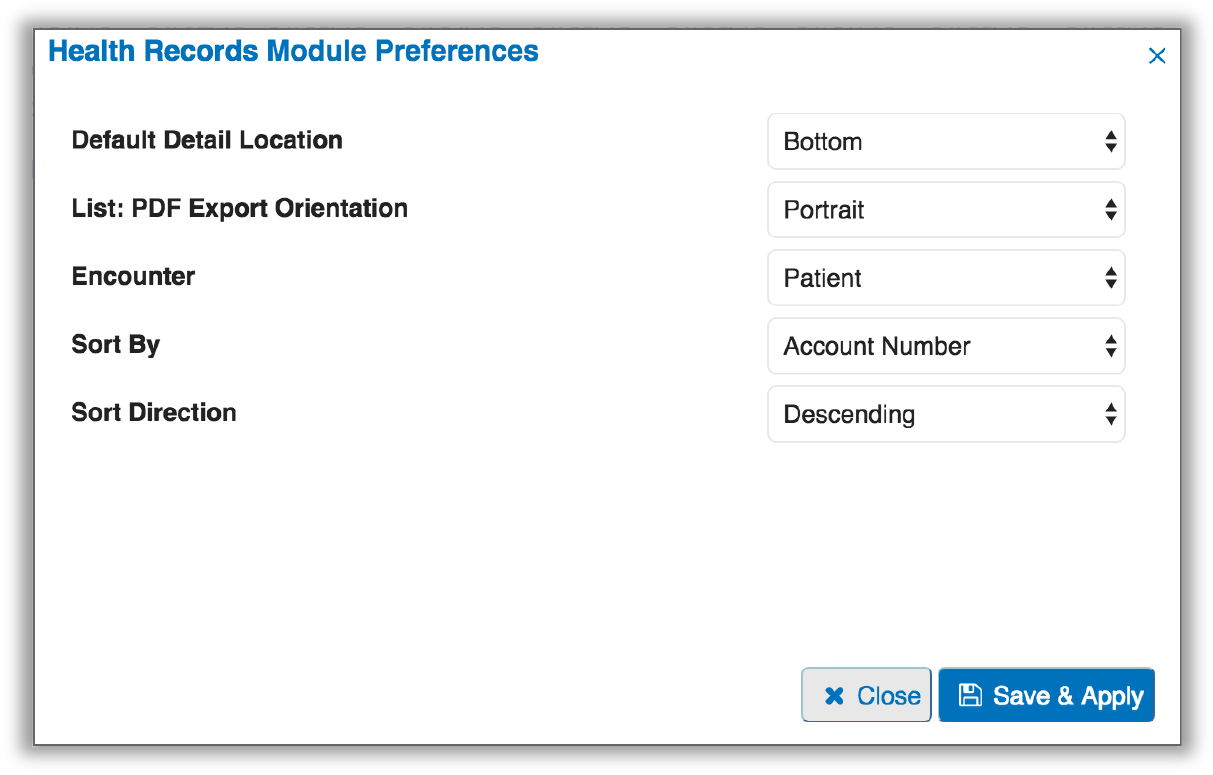
After updating your preference settings, click the Save & Apply button to save your changes.
To learn more about the various preference setting options, please visit the Common Preference Settings in ClinicalConnect section.