Resource Centre - Pathology and Genetics Module
 Return to Resource Centre
Video Tutorial
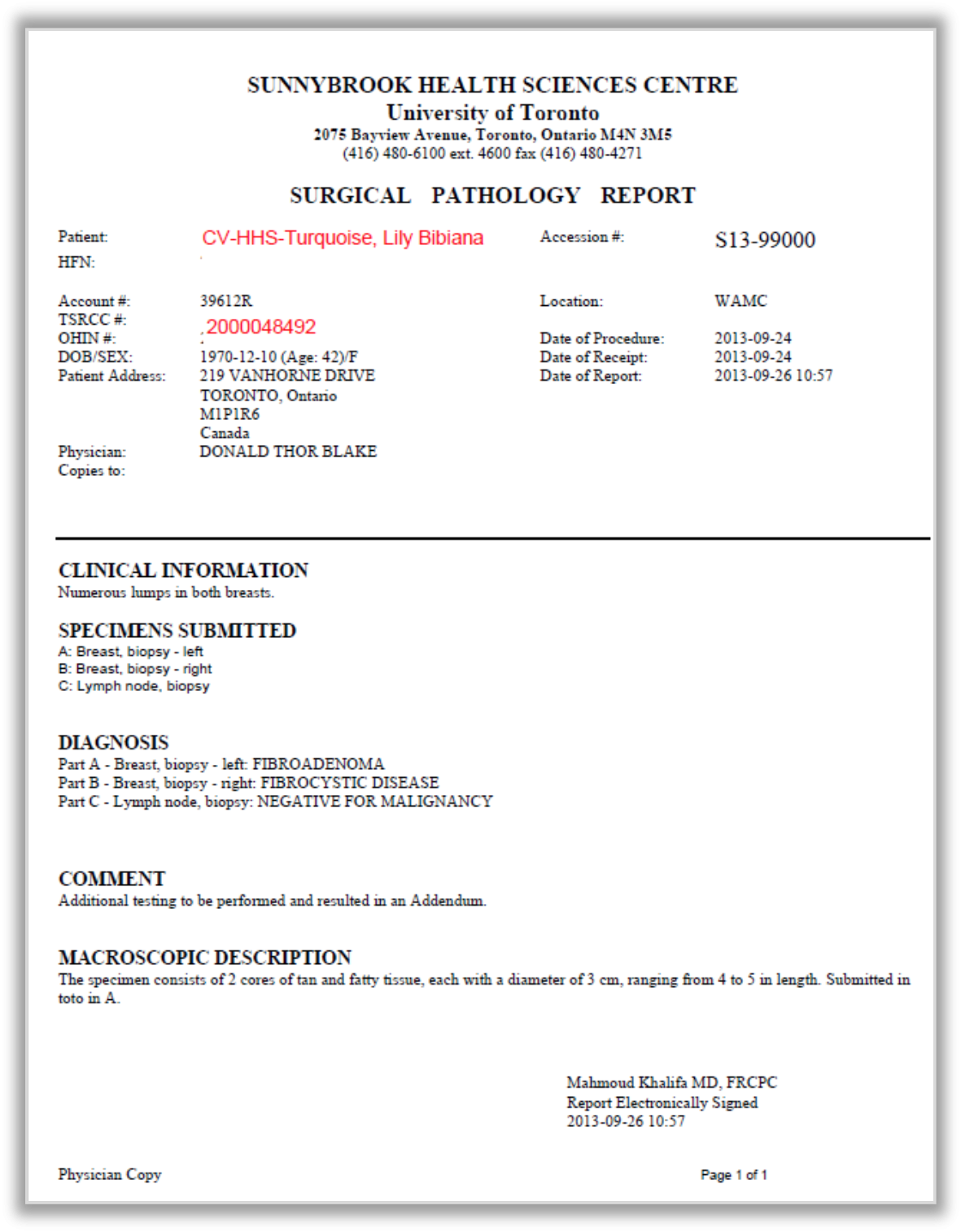
The Pathology and Genetics module displays results and details of a patient’s pathology reports. OLIS data is also integrated into the Pathology and Genetics module. OLIS data comes from a Community Labs, Public Health Labs and several acute care hospitals that are contributing data into OLIS.
To see a complete list of the contributors visit the following link: https://ehealthontario.on.ca/en/health-care-professionals/lab-results
 OLIS data is not available in the New Results module and will not generate new results flags. See the New Results section to learn more about how new results are flagged.
If new results are available, the module will be flagged with an orange or red indicator with a number showing how many new results are available.
New Results functionality is not available for Pathology reports from Hamilton Health Sciences and St Joseph’s Healthcare Hamilton in the Pathology & Genetics module. in this case, users will not receive new result notifications if subscribed to the associated MRN.
To access the Pathology module, click the Pathology option in the Clinical Modules menu.
Viewing Pathology and Genetics Details
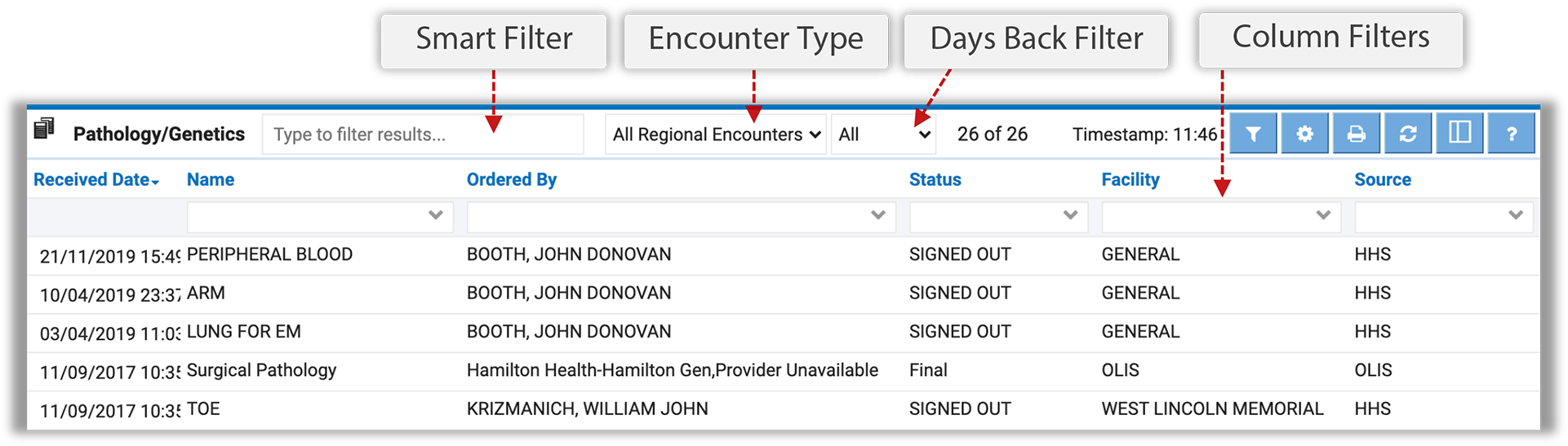
Pathology and Genetics results are displayed in a sortable list in the Results List View.
Click the row of the result you want to view to see even more details about that result.
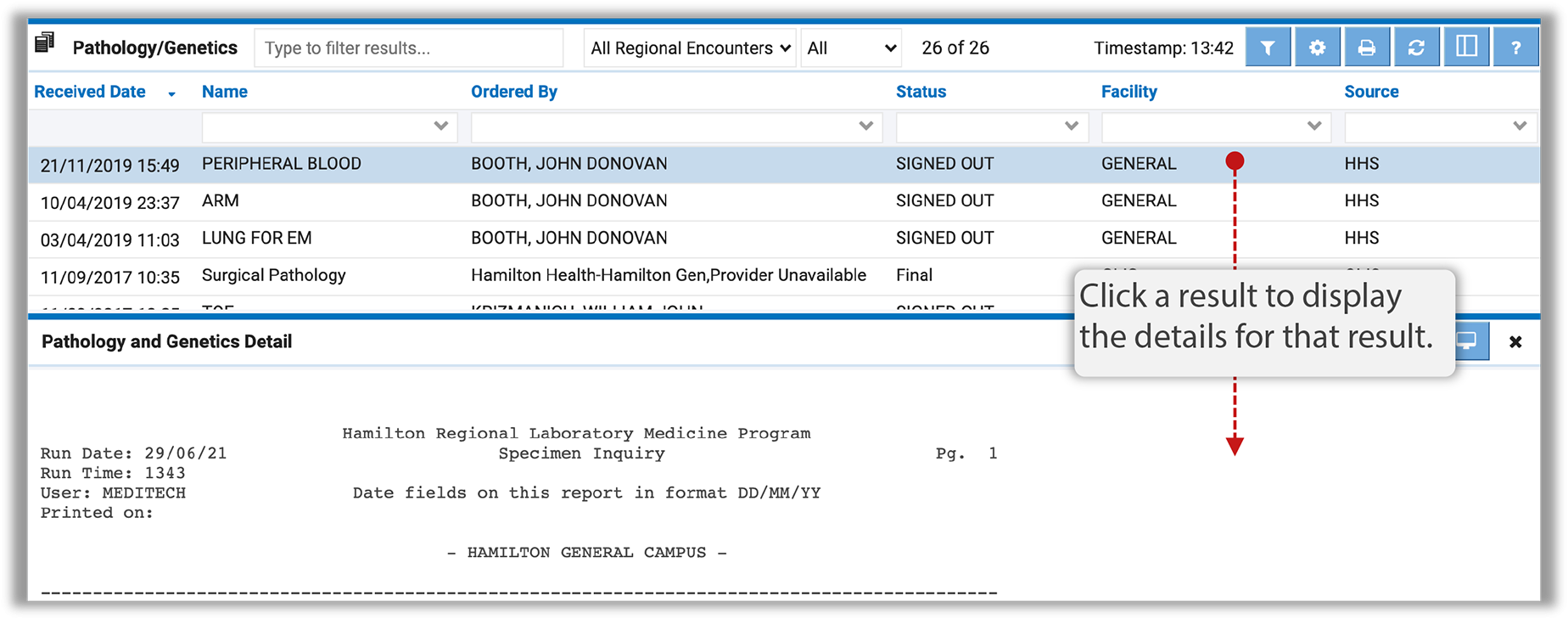
Depending on your preference settings, the Pathology and Genetics Detail window will either show up to the right of the results list or below the results list. Click the Close button to return to the results list view.
Preferences
The Pathology and Genetics module has its own set of preferences that can be accessed and configured by clicking the Preferences button  in the module header or by using the Preference Setup Wizard.
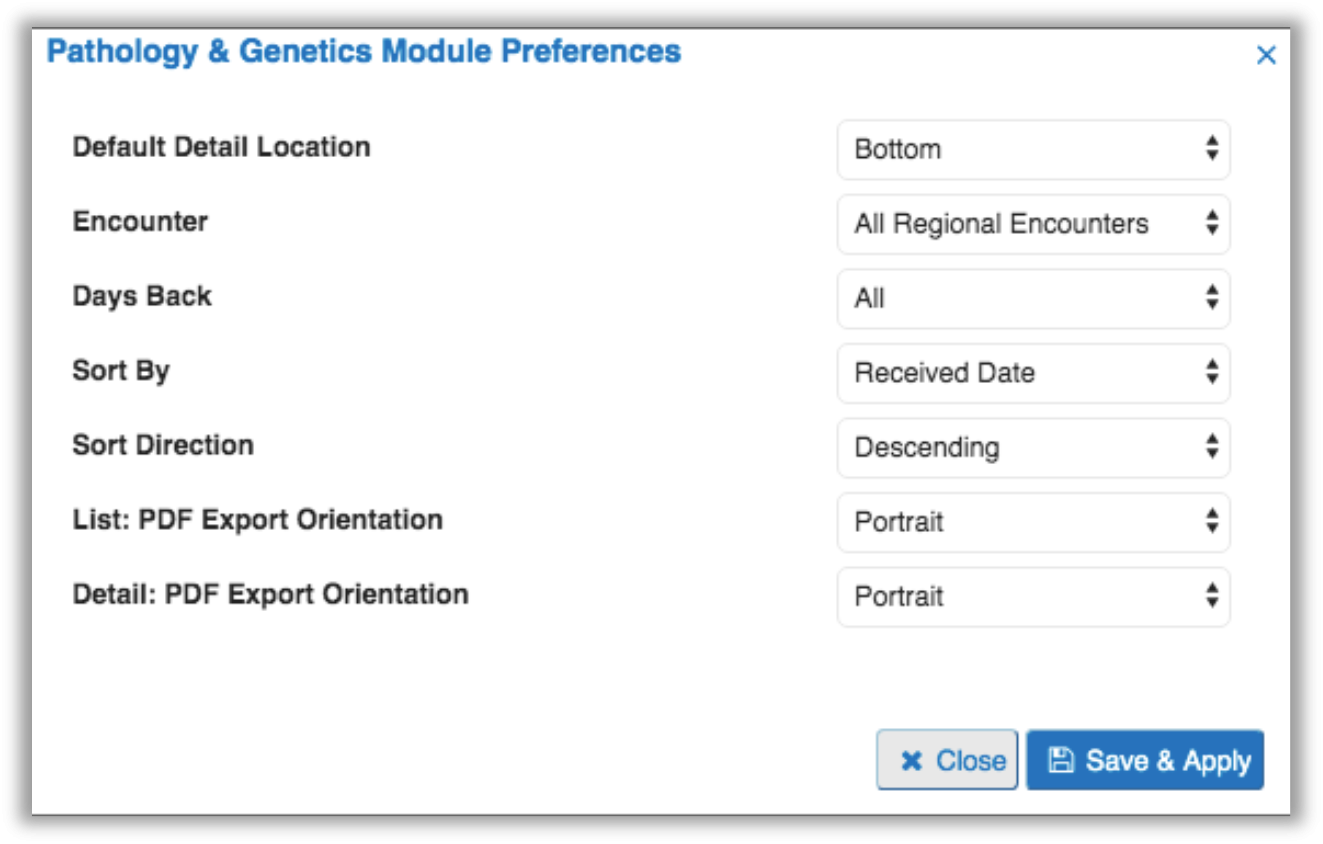
After updating your preference settings, click the Save & Apply button to save your changes.
To learn more about the various preference setting options, please visit the Common Preference Settings in ClinicalConnect section.
Viewing Ontario Laboratories Information System (OLIS) Data
OLIS Limitations
There are limitations for accessing OLIS data from within ClinicalConnect. These limitations include:
- An organization must have signed up for the appropriate Ontario Health access otherwise, you will not be able to access OLIS data and OLIS data will not be listed in the modules. If the access permissions are not in place you will see the message “OLIS matches filtered.”
- A patient's record may have a consent directive limiting some or all of their OLIS data from displaying in ClinicalConnect. This will generate the message “Some or all of the requested OLIS laboratory information was not returned due to a patient consent directive.” OLIS restricted records cannot be overridden in ClinicalConnect.
To view OLIS data in the Pathology and Genetics module:
- Make sure the encounter filter is set to All Regional Encounters.
 You can enter OLIS in the Smart Filter or select OLIS from the Facility or Source column filters. This will filter the list to just display information from OLIS.

2. Click the row of the OLIS results you want to view. The OLIS report will open in PDF format and will display your username in the footer.

OLIS Encapsulated Data
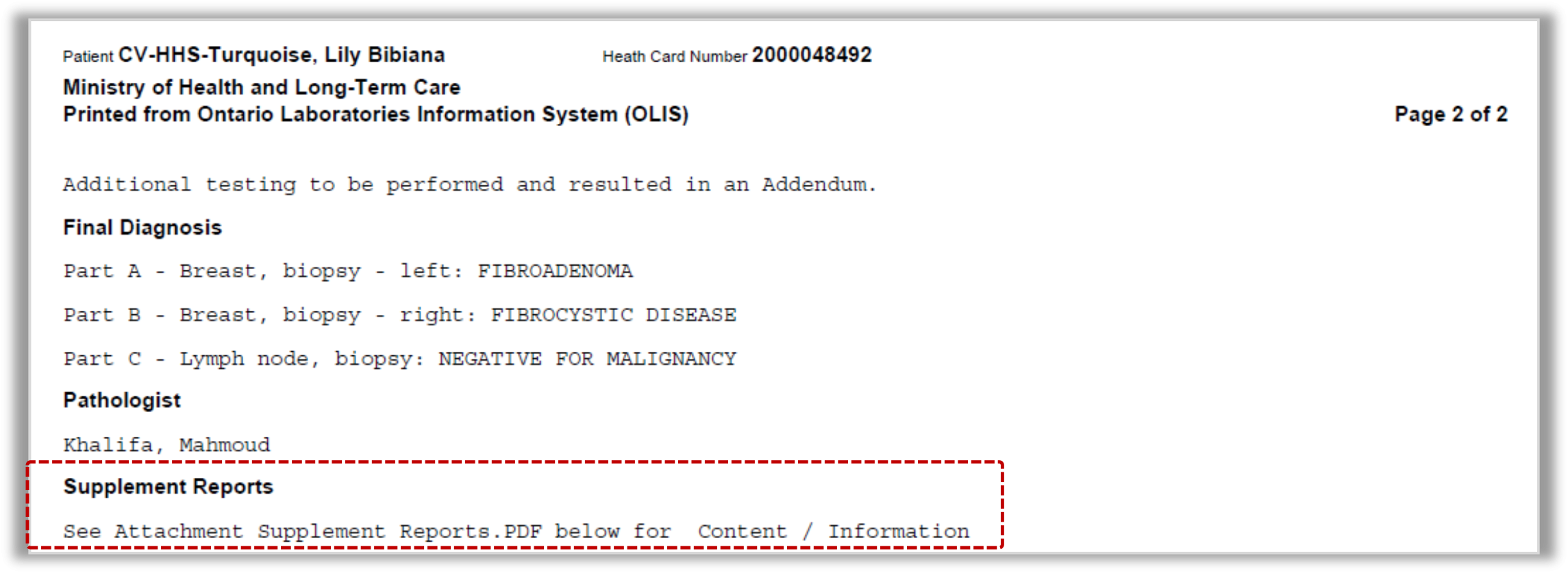
OLIS Encapsulated Data may be an image, fax, or PDF with information related to the test from other facilities. If additional encapsulated data is available, it will be noted in the report in the Supplement Reports section as See Attachment Supplement Reports. PDF below for Content/Information.
Example: See Attachment Reports. PDF below for Content/Information message in the Supplemental Reports section of the report.
Scrolling to the next page displays the encapsulated data: