Resource Centre - Selecting and Viewing Multiple Lab Result Details

The Components, Expanded, and List Views allow you to view multiple lab result details in a single Lab Details window.
To view multiple lab result details:
1. Select (check) the tests or components you want to view.
2. Click the View Multiple button in the Labs header.

3. All the details for the results you selected will be displayed in a single Lab Details window.

Trending Lab Results
Lab trending and graphing can be performed on results listed in the Component, Expanded, and List views.
To trend results:
- Make sure Select similar is enabled. When this option is enabled you can click on a single test result and ClinicalConnect will automatically select all results with the same test name.
Select Similar Enabled:
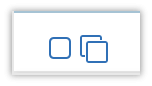
Select Similar Disabled:

If Select Similar is disabled, click the X once to change it to enabled - Select the test or component you want to trend. In this example the Hemoglobin component is selected.

 If Select Similar is enabled you would notice that all instances of Hemoglobin are selected.
- Click the Trend button.
All Hemoglobin results are displayed in the Lab Tranding portion of the screen

- Click the trended component in the Lab Trended view to display the graph view of the trended data. To hide the graph from this view, click the lab test again.

Graph Zoom
Multiple lab values can be difficult to read if they are plotted closely on the graph. The new zoom feature allows you to select a section of a graph and zoom into that section to get a better view of the multiple points of data.
This feature is available in both the Labs module and the Patient Timeline.
To zoom into a graph:
- Click and drag your cursor over the portion of the graph you want to zoom in on.

- Release your mouse button to zoom in. Click the Reset zoom button to reset the graph to its original size.

Setting Your Default Labs View
You can select which Lab view you want displayed by default when you first access the Labs module. The easiest way to customize your default Lab view is from the Lab module Preference icon.
To configure the default view:
- Click on the Preference icon from any Lab module.

The Preferences window will display the Default View option.
- Click the Default View dropdown list to select the Labs tab you want displayed when you first access the Labs module.
- Click ‘Save & Apply’ to save your preferences. This will ensure that the next time you access the Lab module, your selected Lab view will display automatically.
